
CDBurnerXP – Free CD, DVD & ISO Burning Software
CDBurnerXP is a free disc burning software for Windows that makes burning CDs, DVDs, and Blu-ray discs simple. You can use it to create audio CDs, burn ISO files, or save important data to discs. Its simple interface lets you handle these tasks without dealing with complicated settings.
- Free to Use
- CD, DVD & Blu-ray Support
- Easy-to-Use Interface
What Is CDBurnerXP?
CDBurnerXP is a free disc burning program designed for Windows users who want to create CDs, DVDs, and Blu-ray discs without complicated steps. It allows you to burn music, videos, documents, photos, and other important files onto discs for storage or backup. You can also create audio CDs, burn ISO images, and prepare data discs using its built-in tools, making it a practical choice for everyday burning needs.
The software provides several useful features, including copying discs, erasing rewritable media, and checking discs after burning. You can select the type of disc you want to create, add your files, and adjust the burning settings based on your needs. Its straightforward interface makes these tasks easy to manage, whether you’re creating a music collection, saving personal files, or making backup copies of important documents.
Key Features of CDBurnerXP
CDBurnerXP offers a range of useful tools for burning discs and managing files on Windows. Whether you want to create a music CD, save important documents, or work with ISO images, the software provides the options you need. Here are some of its main features.
Burn CDs and DVDs
CDBurnerXP lets you burn CDs, DVDs, and Blu-ray discs to store your important files. You can add documents, photos, videos, and music to a disc for backup or personal use. Choose your files, adjust the burning settings, and start creating your disc in minutes.
Create and Burn ISO
CDBurnerXP allows you to create ISO images and burn existing ISO files onto compatible discs. This feature comes in handy when preparing installation media or keeping copies of disc content. You can select an ISO file, choose your disc, and begin burning with just a few steps.
Create Custom Audio CDs
CDBurnerXP makes it simple to create audio CDs using music files saved on your computer. You can select your favorite songs, arrange them in the order you prefer, and burn them onto a disc. These CDs can be played on compatible car stereos and home players.
Copy and Backup Discs
CDBurnerXP provides tools for copying supported discs and saving their contents as disc images. This is useful when you want another copy of your personal files or need to preserve important data. The available copying options depend on your disc type, drive, and hardware capabilities.
Erase Your Rewritable Discs
CDBurnerXP lets you erase data from compatible rewritable CDs and DVDs so you can use them again. Instead of throwing away a disc after one use, you can clear its contents and add new files. This is useful for managing temporary backups and updating stored information.
Simple and User Friendly
CDBurnerXP comes with a simple interface that helps you find the tools you need without confusion. You can choose a burning task, select files, and change settings before starting. The clear layout makes it easier for beginners to burn discs while keeping useful options within reach.
CDBurnerXP Free Download for Windows
CDBurnerXP is a free disc burning program that lets you create CDs, DVDs, and Blu-ray discs on your Windows computer. You can burn music, photos, videos, and important documents without using complicated tools. It also supports ISO images, making it useful for creating installation discs and storing files for future use.
Downloading CDBurnerXP is simple, and the software offers an easy installation process for Windows users. Once installed, you can choose the type of disc you want to create, add your files, and adjust the burning settings. Before downloading, make sure your Windows version is compatible and your computer has a supported disc drive.
How to Install CDBurnerXP on Windows
Installing CDBurnerXP on your Windows computer is simple and takes just a few steps. Before getting started, make sure your system meets the software requirements and you have downloaded the installer from a trusted source. Follow these instructions to complete the installation and start using the software.
Step 1: Download the Installer
Visit a trusted CDBurnerXP download source and choose the installer suitable for your Windows computer. Save the setup file in a folder where you can easily find it.
Step 2: Open the Setup File
Find the downloaded installer in your Downloads folder and double-click it to begin. If Windows asks for permission to run the program, review the publisher details before continuing.
Step 3: Follow the Setup Instructions
Read the instructions displayed by the setup wizard and choose your preferred installation options. Review any additional software offers carefully before accepting them, then continue with the installation process.
Step 4: Complete the Installation Process
Allow the installer to copy the necessary files to your computer. Once the setup process finishes, click the Finish button to close the wizard and complete the installation.
Step 5: Launch and Start Burning
Open CDBurnerXP from your desktop shortcut or Windows Start menu. Select the type of disc project you want to create, add your files, and adjust the available burning settings.
How to Use CDBurnerXP to Burn CDs and DVDs
Using CDBurnerXP is simple once you know which option to choose. The software provides different tools for burning data, creating audio CDs, and working with ISO images. Whether you’re saving personal files or preparing a disc for another computer, these steps will help you get started.
1. Burn a Data Disc
Open CDBurnerXP and select the Data Disc option. Add the files or folders you want to save, then insert a blank CD or DVD into your drive. Check the available disc space, choose your burning settings, and click Burn to start writing your files.
2. Create an Audio CD
Launch CDBurnerXP and choose the Audio Disc option. Add your preferred music files and arrange the tracks in the order you want them to play. Insert a blank CD, review the available settings, and start burning to create an audio disc for compatible players.
3. Burn an ISO File
Open CDBurnerXP and select the Burn ISO Image option. Browse your computer to find the ISO file you want to use. Insert a compatible blank disc, select your burning drive, and review the settings before starting. Wait until the burning process finishes.
4. Create an ISO Image
Start CDBurnerXP and open a Data Disc project. Add the files and folders you want to include in the image. Instead of burning them directly to a disc, choose the option to save the project as an ISO file and select a destination.
Why Choose CDBurnerXP?
CDBurnerXP is a useful option for Windows users who want to burn discs without dealing with complicated software. It brings essential burning tools together in one place, making it easier to save files, create music CDs, and manage disc images. Here are a few reasons why people choose CDBurnerXP.
Completely Free to Use
CDBurnerXP gives you access to its disc burning features without requiring a paid license. You can create discs, burn ISO files, and manage your data without spending money on additional software.
Supports Multiple Disc Formats
Whether you're working with CDs, DVDs, or Blu-ray discs, CDBurnerXP offers the tools needed to handle different formats. This gives you more flexibility when storing personal files, music, or important documents.
Simple and Convenient Interface
You don't need advanced technical knowledge to get started with CDBurnerXP. Its straightforward interface helps you find the right options, select your files, and complete burning tasks without unnecessary confusion.
Useful Disc Burning Tools
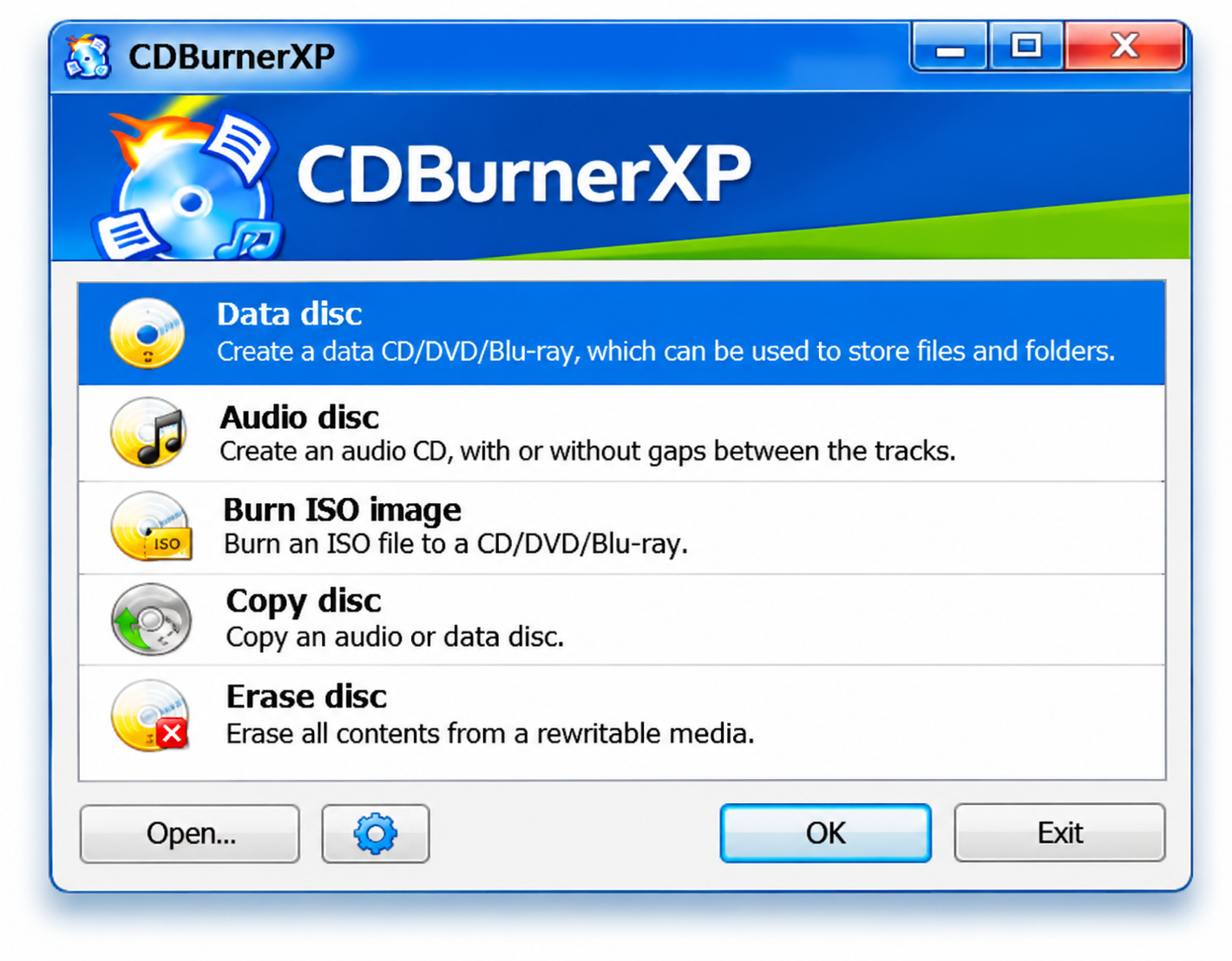
From creating audio CDs to burning ISO images and erasing rewritable discs, CDBurnerXP covers several everyday tasks. Having these tools in one program makes managing your discs more convenient.
CDBurnerXP System Requirements
Before installing CDBurnerXP, make sure your computer meets the basic system requirements. The software works with several Windows versions and does not need much storage space. You’ll also need a compatible disc writer to burn CDs, DVDs, or Blu-ray discs. Check the requirements below to see what your computer needs.
Minimum System Requirements
Requirement | Specifications |
|---|---|
| Operating System | Windows 7, 8, 8.1, 10, and 11 |
| System Architecture | 32 bit and 64 bit |
| Processor | No specific minimum published |
| RAM | No specific minimum published |
| Storage Space | At least 10 MB for the application |
| Disc Drive | Compatible CD, DVD, or Blu-ray writer |
| Additional Software | .NET Framework 4.0 or later |
| Internet Connection | Needed to download the installer |
Important Compatibility Information
CDBurnerXP supports several Windows versions, but performance and compatibility may vary depending on your system. Make sure your disc drive supports the media you want to burn. Older Windows versions may also require additional components before the software can run properly.
Disc Formats Supported by CDBurnerXP
CDBurnerXP supports a variety of disc and audio formats, allowing users to burn data, create music CDs, and store files on different types of optical media. The supported formats depend on your disc drive and the type of media you use.
Disc Formats
| Disc Type | Supported Formats |
|---|---|
| CD | CD-R, CD-RW |
| DVD | DVD-R, DVD+R, DVD-RW, DVD+RW, DVD-RAM, DVD-R DL, DVD+R DL |
| Blu-ray | BD-R, BD-RE, BD-R DL |
| HD DVD | HD DVD-R, HD DVD-RW |
| Archival | M-Disc (with compatible hardware) |
Audio Formats
| Format | Full Name |
|---|---|
| MP3 | MPEG-1 Audio Layer III |
| WAV | Waveform Audio File Format |
| FLAC | Free Lossless Audio Codec |
| OGG | Ogg Vorbis |
| WMA | Windows Media Audio |
| APE | Monkey’s Audio |
| ALAC | Apple Lossless Audio Codec |
CDBurnerXP vs Windows Built-in Disc Burning Tools
Windows comes with basic tools for burning files and ISO images to discs, but CDBurnerXP offers more options in one place. It lets you create audio CDs, manage disc images, and adjust burning settings based on your needs. The table below shows how CDBurnerXP compares with the disc burning features available in Windows.
| Feature | CDBurnerXP | Windows Built-in Tools |
|---|---|---|
| CD and DVD Burning | Yes | Yes |
| Blu-ray Data Burning | Yes | Depends on the available tools |
| ISO Image Burning | Yes | Yes |
| Audio CD Creation | Yes | Depends on the media application |
| Disc Copying | Yes | Limited options |
| Rewritable Disc Erasing | Yes | Yes |
| Advanced Burning Settings | Available | Limited |
| Free to Use | Yes | Yes |
Frequently Asked Questions About CDBurnerXP
Find answers to common questions about CDBurnerXP, including installation, Windows compatibility, disc burning, and ISO files. Whether you’re getting started or facing an issue, these FAQs will help you understand the software and use its features with confidence.
Is CDBurnerXP free to download and use?
Yes, CDBurnerXP is completely free to download and use. You can burn CDs, DVDs, and Blu-ray discs, create audio CDs, and work with ISO images without purchasing a license or paying for its features.
Does CDBurnerXP work on Windows 11?
CDBurnerXP may work on Windows 11, although compatibility can depend on the software version and your system configuration. Make sure you have the required components installed and use a compatible disc drive for burning.
Can I use CDBurnerXP on Windows 10?
Yes, CDBurnerXP can be used on Windows 10 to burn CDs, DVDs, and Blu-ray discs. It also supports creating audio CDs and working with ISO images, provided your computer has a compatible disc writer.
Does CDBurnerXP support Blu-ray discs?
Yes, CDBurnerXP supports burning data onto compatible Blu-ray discs. You can use it to store large files, videos, and backups. However, your computer must have a Blu-ray writer to burn these discs successfully.
Can CDBurnerXP burn ISO files?
Yes, CDBurnerXP allows you to burn ISO image files directly onto compatible discs. Simply select the ISO burning option, choose your image file, insert a blank disc, and follow the instructions to complete the process.
How do I create an audio CD with CDBurnerXP?
Open CDBurnerXP and select the Audio Disc option. Add your music files, arrange the tracks in your preferred order, and insert a blank CD. Review the burning settings and start creating your audio disc.
Can CDBurnerXP create bootable discs?
Yes, CDBurnerXP can burn bootable ISO images onto compatible discs. If the ISO file already contains the required boot information, you can burn it to a disc and use it with a computer that supports booting from optical media.
Does CDBurnerXP support 64 bit Windows?
Yes, CDBurnerXP can run on supported 64 bit Windows systems. You should choose a suitable installer and make sure your computer meets the necessary requirements. A compatible optical drive is also needed for burning discs.
Is CDBurnerXP safe to download?
CDBurnerXP can be downloaded safely when you use a trusted source and verify the installer before opening it. Avoid unknown download websites, check the file with security software, and review any additional installation offers carefully.
Why is CDBurnerXP not detecting my disc drive?
If CDBurnerXP cannot detect your disc drive, check whether Windows recognizes the device. Make sure the drive is connected properly, update its drivers if necessary, and confirm that your disc writer supports the media you are using.